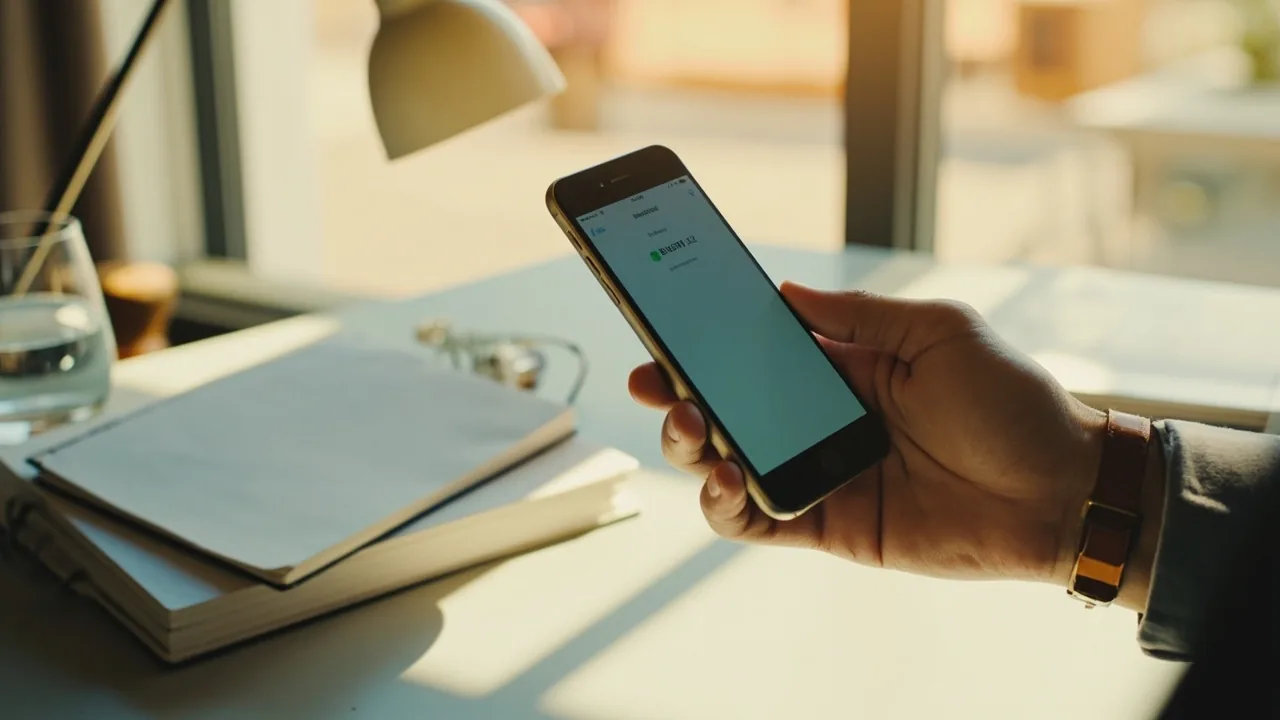
Why some users need the APK
The partner operator app may not be on the Google Play store in every geography. When the Play store does not show the app, the partner domain provides a direct APK download. The desk’s role is to describe how to verify the source — not to host the APK.
How to verify the publisher
- Open the partner domain in your browser (avoid tapping APK links from other sites).
- Look for the publisher certificate in the partner app’s about screen.
- Compare the certificate with the partner operator’s official communications.
- Match the package name (e.g. com.example.fantasy) to the partner operator’s published value.
How to confirm the latest version
The partner operator publishes the latest APK version on the partner domain. The desk does not track version numbers; we recommend checking the partner domain directly before installing.
Security tips for sideloading an APK
- Install the APK only from the partner operator’s domain.
- Verify the publisher certificate is identical between the partner domain and the APK.
- Do not grant the app permissions it does not request.
- Re-enable the “install from unknown sources” setting for the browser you used — keep it off for everything else.
- Delete the downloaded APK after installation if you prefer, or keep it as a backup.
The trust chain: publisher → certificate → package name
Every signed APK carries a publisher certificate and a package name. The publisher certificate is a cryptographic fingerprint that verifies the APK was built by the named developer. The package name is the unique identifier Android uses to track the install. The desk recommends you verify both against the partner operator’s official communications before installing.
On a phone, both pieces of information show up in the Android settings → Apps → App info → App details. If the publisher certificate or the package name does not match the partner operator’s published values, do not install — uninstall if already installed.
Common APK scams the desk warns against
Mirror sites. Lookalike apps with similar names. Hidden permissions that collect data outside the contest product. The desk publishes this warning as part of its editorial standards — the partner operator is the only source for the APK and the only source for the support pathway when something goes wrong.
Older Android versions and the APK path
Older Android phones (7 to 8) cannot run the latest app version. The partner operator maintains a compat list on the partner domain. The desk recommends the partner operator as the only source for older-version APKs and notes that older versions may not receive the same security updates as the current version.
What the desk recommends
The desk recommends installing the APK only from the partner operator’s domain. Verify the publisher certificate and package name against the partner operator’s published values. Update the device to Android 9 or above before installing. Use a Wi-Fi connection for the first install. Read the partner operator’s published terms before claiming any bonus or making any deposit.
The package name and what it tells you
Every Android app carries a unique package name (e.g. com.example.fantasy). The package name is shown in the Android settings → Apps → App info menu. The partner operator publishes its package name on the partner domain. If the two do not match, do not install.
The certificate fingerprint and what it tells you
Every signed APK carries a publisher certificate. The certificate is a cryptographic fingerprint that confirms the APK was built by the named publisher. The fingerprint is shown in the Android settings → Apps → App info → App details menu. Match it against the partner operator’s published fingerprint before installing.
What happens if the install fails
If the APK install fails partway, the partner app may leave a partial install on the device. Reboot the device, then re-install from clean. If the install fails twice, contact customer care.
What the desk clarifies about APKs
The desk does not host an APK. The desk does not redistribute partner binaries. The desk does not endorse APK mirrors. The desk publishes this guidance as editorial reference, not as a hosting service.
Side-loaded versus store-installed — the differences
Side-loaded APKs come from outside the official app store. The user enables “install from unknown sources” for the browser the install comes from. The APK is verified against a publisher certificate and a package name. The APK may not receive the same auto-update mechanism as a store-installed app; the user may need to re-install when a new version is published.
Store-installed apps come from the App Store or Google Play. The store handles verification, delivery, updates, and removal. The store-installed path is generally simpler and safer than side-loading for end users.
The desk’s clarification
The desk publishes this material as editorial reference. The desk does not host an APK. The desk does not redistribute partner binaries. The desk does not endorse APK mirrors or third-party sites that redistribute the partner APK. The only safe install path is the partner operator’s domain.
Older devices and the APK path
Older devices (Android 7 to 8, iOS 12 to 14) cannot run the latest app version. The partner operator may publish a compat list on the partner domain. The desk recommends the partner domain as the source for older-version APKs and notes that older versions may not receive security updates.
The trust chain detail
The trust chain — publisher → certificate → package name — is the desk’s primary verification tool for APK integrity. The chain runs from the publisher (the partner operator) to the certificate (the cryptographic fingerprint) to the package name (the unique identifier). Match all three against the partner operator’s published values before installing.
What the desk publishes
The desk publishes the verification steps, not the APK itself. The APK is hosted on the partner operator’s domain. The desk’s role is editorial — to help the reader verify the source, not to host or distribute it.
What the desk does not cover in the area below
The remaining material does not cover iOS installs (the partner app is on the App Store in supported regions). It does not cover Windows or macOS or Linux desktop apps. It does not cover in-app purchase mechanics or contest product features. Those topics live at /app-download/ and /bonus-code/.
How to verify the publisher certificate
Open the partner APK in the partner app screen. Tap the menu, choose About, and look for the publisher name and certificate SHA-256 fingerprint. Cross-check against the partner domain’s published certificate. Do not install if the certificate fingerprint does not match. Some Android versions display the certificate under Developer options → Security → Verify apps.
Why the desk recommends the partner domain only
The APK is signed with a publisher certificate tied to the partner operator’s domain. Installing from a mirror site breaks the trust chain — you cannot verify the publisher’s certificate without the original domain. Mirrors may also ship modified APKs that include hidden permissions or bundled malware.
The three things the desk recommends
First, install only from the partner operator’s domain. Second, verify the publisher certificate and package name before installing. Third, keep the device OS up to date and run Google Play Protect for additional scan coverage.